V4.9.10 - When importing images from file directories, it cannot select multiple directories at once. Each file directory with photos has to be selected one by one. Worst of all is that after the first directory selected it does not remember the path, so with the second directory to add it throws you to its default c:programfiles directory, and then you have to go manually to the file storage directory to select the second directory, and repeat the rest of the flights after that. V4.9.1 did exactly the same. Please fix this issue and upload a new version that works correctly.
Hi @Sam_Bramble
Thank you for your message and for reporting this problem.
I’m reporting this to the product team. Please note however that I can’t guarantee that this will be fixed.
In the meantime, if you want to select images from multiple folders, I suggest proceed as follows:
- Ensure that all folders containing the images you need are located within the same parent folder
- In the “New project” wizard in PIX4Dmapper, in the select images step, select Add Images…
- Navigate to the parent folder (do not open the folders with the images)
- In the top-right corner of the “select images” window, type
*.jpg. This will search for all jpg files within the parent folder (searching in all child folders, the ones with the images) - type
Ctrl+Ato select all images found - Press Open
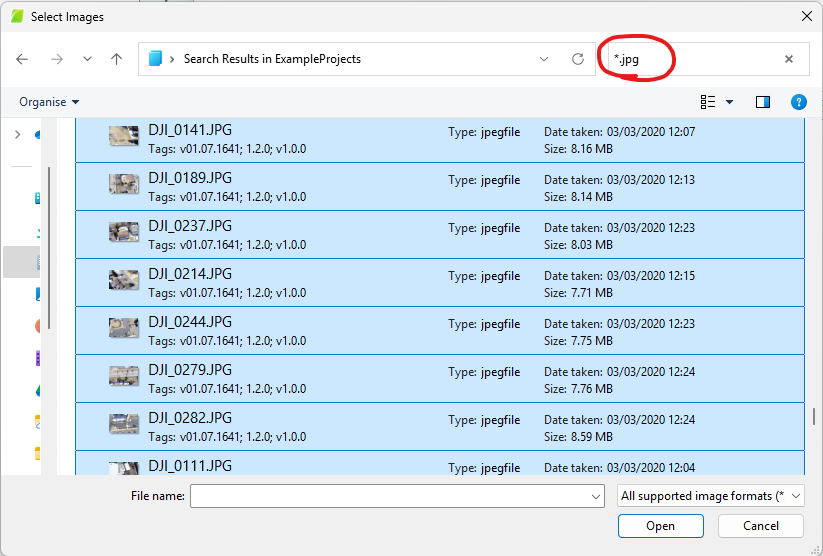
This will add all images located in the parent folder to your PIX4Dmapper project.
Let me know if this works for you.
Cheers,
Daniele